Ryzen Master supports configurable performance profiles on compatible systems. Profiles let you save a tuning setup and switch between setups without re-entering every value.
Why use profiles?
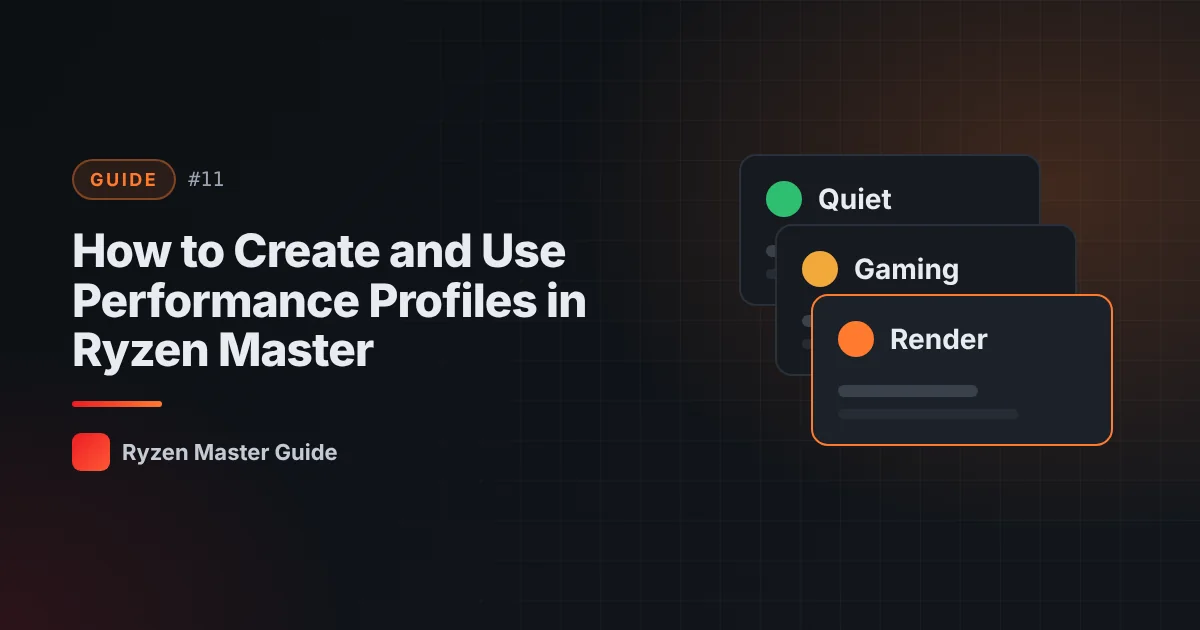
Different tasks benefit from different settings:
- Everyday / quiet: stock settings or Eco Mode for lower heat and noise
- Gaming: a tested PBO or Curve Optimizer configuration
- Rendering / heavy work: a configuration focused on sustained multi-core performance
Profiles keep each of these organized.
How profiles generally work
Depending on your version, Ryzen Master provides one or more profile slots. You adjust settings inside a profile, apply them, and save. Later you can select a profile and apply it again. The exact number of profiles and layout vary between versions.
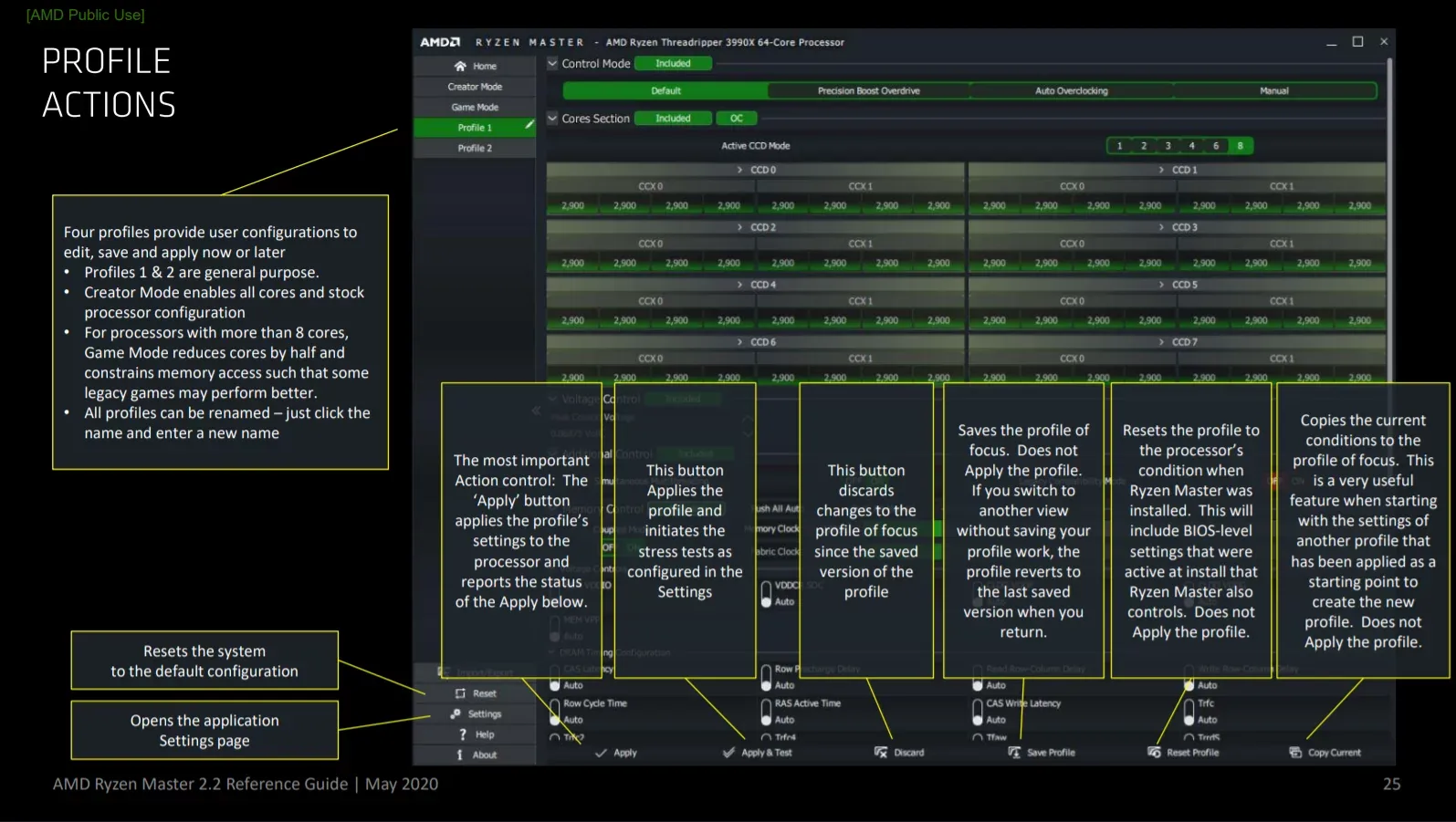
Building a good profile — step by step
- Start from stock. Make sure you know your baseline.
- Pick one goal for the profile (quiet, gaming, heavy work).
- Change one setting at a time and test after each change.
- Stress test the final configuration — see our stress testing guide.
- Save the profile.
- Write down every value in a note or spreadsheet as a backup.
Naming tips
If your version allows naming, use clear names:
- “Quiet – Eco”
- “Gaming – PBO tested”
- “Render – CO all-core”
Avoid vague names like “Test 2” — you’ll forget what they mean.
Keep a written record
Software updates, BIOS updates or a reset can clear saved settings. A simple written log means you can rebuild any profile in minutes:
| Profile | Setting | Value | Stable? | Notes |
|---|---|---|---|---|
| Gaming | PBO | Enabled | Yes | +X °C vs stock |
Common mistakes
- Saving a profile before testing it
- Changing settings in BIOS and Ryzen Master for the same feature
- Forgetting which profile is active
- Not re-testing after a BIOS update
After a BIOS or Ryzen Master update
Updates can change behavior. Re-apply your profile and test again rather than assuming it’s still stable.
Summary
Profiles turn tuning into an organized system. Test before saving, name profiles clearly, and keep a written backup of your values.
Frequently asked questions
Why use more than one profile?
Different tasks benefit from different settings, such as a quiet profile for daily use and a tested tuning profile for heavy work.
Can a BIOS update erase my profiles?
Updates and resets can change or clear settings, so keep a written record of every value and re-test after updates.
Should I save a profile before testing it?
No. Test a configuration for stability first, then save it.