Precision Boost Overdrive, usually called PBO, is one of the most talked-about Ryzen tuning features. This guide explains it without the jargon.
First: what is Precision Boost?
At stock settings, Ryzen processors use Precision Boost to raise clock speeds automatically when there’s enough power, current and thermal headroom. It’s already working on your PC without Ryzen Master.
So what does PBO add?
PBO is an AMD feature on supported processors and platforms that lets you adjust the power and current limits the processor works within. With higher limits, the processor may be able to sustain higher boost clocks for longer in some workloads.
Key point: PBO doesn’t set a fixed clock speed. It gives the automatic boost system more room, and the processor still decides its own clocks based on conditions.
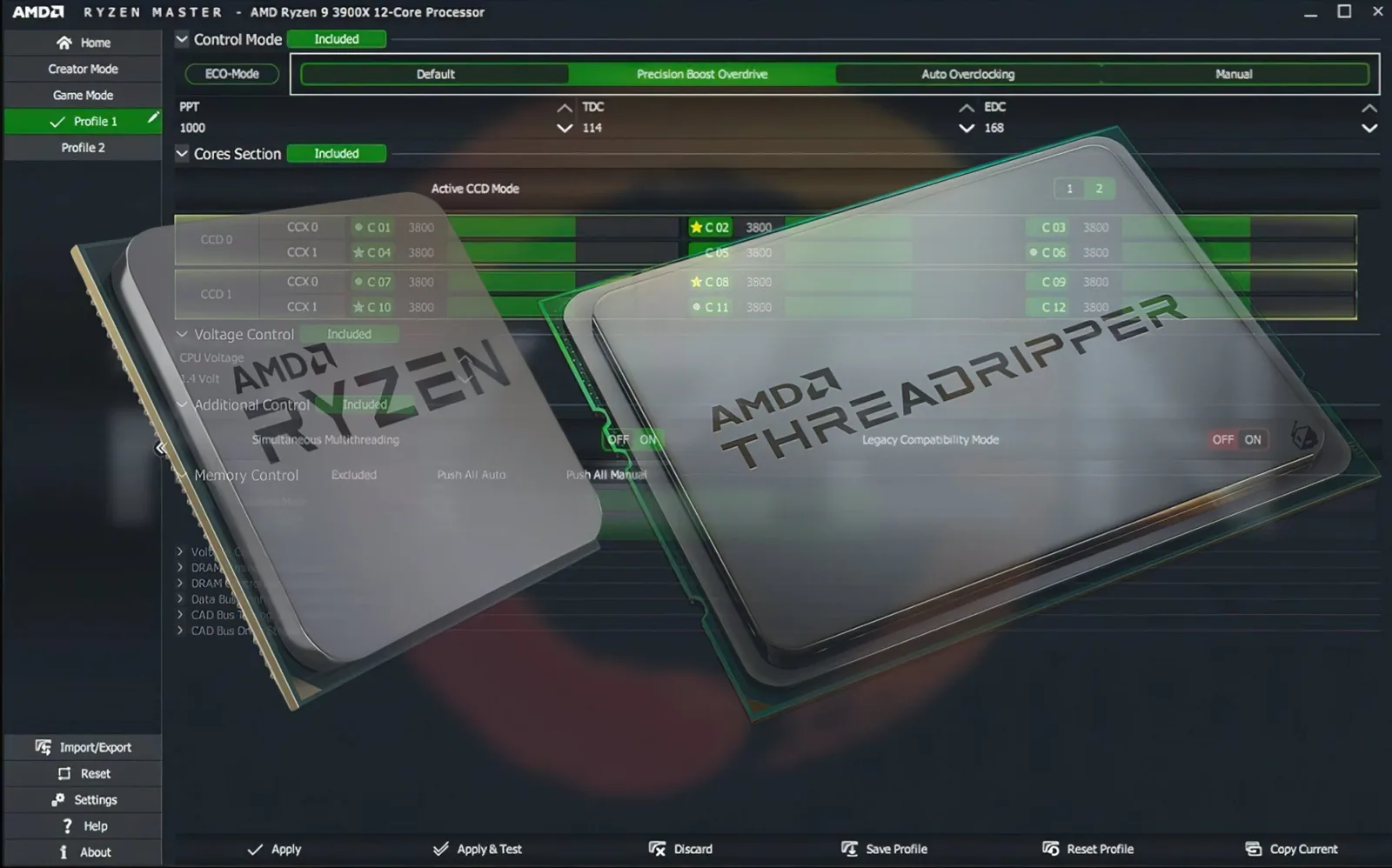
PBO vs manual overclocking
| PBO | Manual overclock | |
|---|---|---|
| Clock behavior | Still automatic, boosts dynamically | Often a fixed frequency |
| Single-core boost | Kept | Can be lost with all-core fixed clocks |
| Ease | Easier to start | Requires more testing |
| Heat | Can increase | Can increase significantly |
What results can you expect?
Results vary widely. They depend on:
- Cooling capacity — PBO is often limited by temperature
- Motherboard power delivery
- Your specific processor
- The workload — long multi-core tasks may benefit more than light tasks or many games
Some users see a noticeable gain in heavy workloads; others see little change except more heat. Neither result means you did something wrong.
How to approach PBO safely
- Record your baseline temperatures and clocks.
- Enable PBO in Ryzen Master (or BIOS) on a supported system — choose one place, not both.
- Apply and restart if required.
- Run the same workloads as your baseline.
- Compare performance, temperature and power.
- Stress test for stability.
When PBO may not be worth it
- Your cooler is already struggling at stock
- You prefer a quiet, cool system
- Your workloads are light and don’t benefit
- You don’t want any out-of-spec operation (it may affect warranty)
PBO and Curve Optimizer
Many enthusiasts pair PBO with Curve Optimizer, which adjusts voltage-frequency behavior. It’s best to learn them separately first.
Summary
PBO gives your Ryzen processor more room to boost automatically on supported systems. It’s simpler than manual overclocking but still raises heat and power, so test carefully and judge results by your own measurements.
Frequently asked questions
Does PBO set a fixed clock speed?
No. PBO adjusts power and current limits on supported systems, while the processor still chooses its own boost clocks automatically.
Will PBO increase my FPS in games?
Results vary. PBO may help in some heavy workloads, while many games and light tasks see little difference.
Should I enable PBO in both BIOS and Ryzen Master?
No. Choose one place to configure PBO so you always know which settings are active.