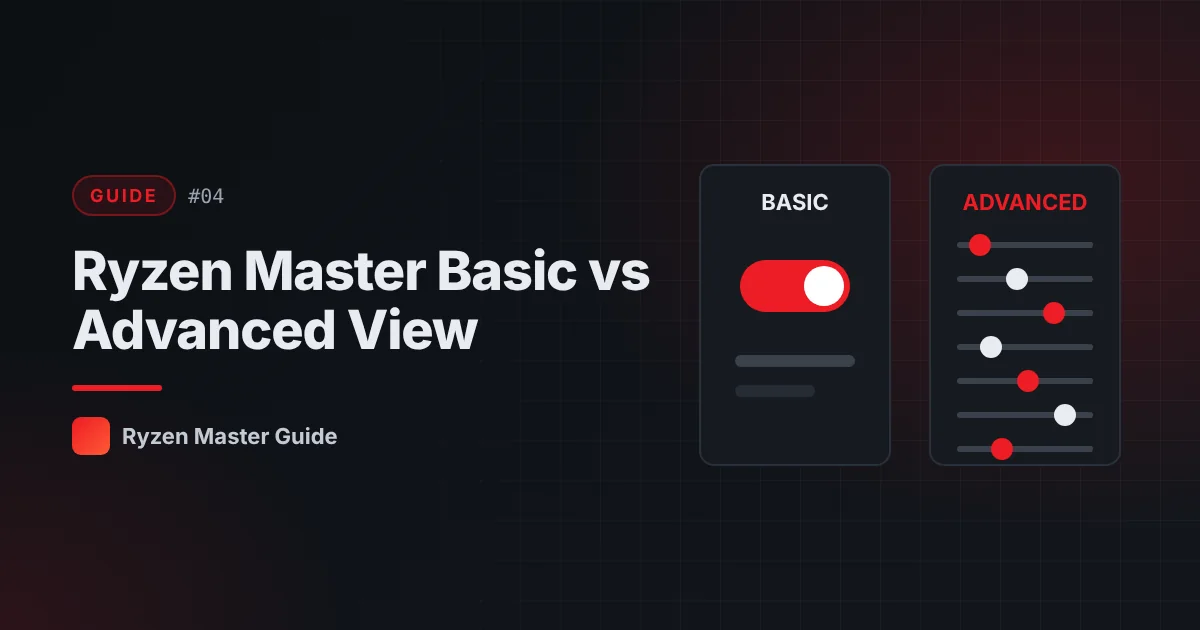
Depending on your processor and software version, Ryzen Master may offer two ways to work: a Basic view and an Advanced view. Choosing the right one makes the tool much easier to use.
Basic view
The Basic view focuses on a simpler experience. It typically presents:
- Key monitoring information such as temperature and clock speed
- A small number of easy-to-understand controls
- Simple options for applying predefined tuning, where supported
Best for: beginners, users who mostly want monitoring, and anyone who doesn’t want to see dozens of technical fields.
Advanced view
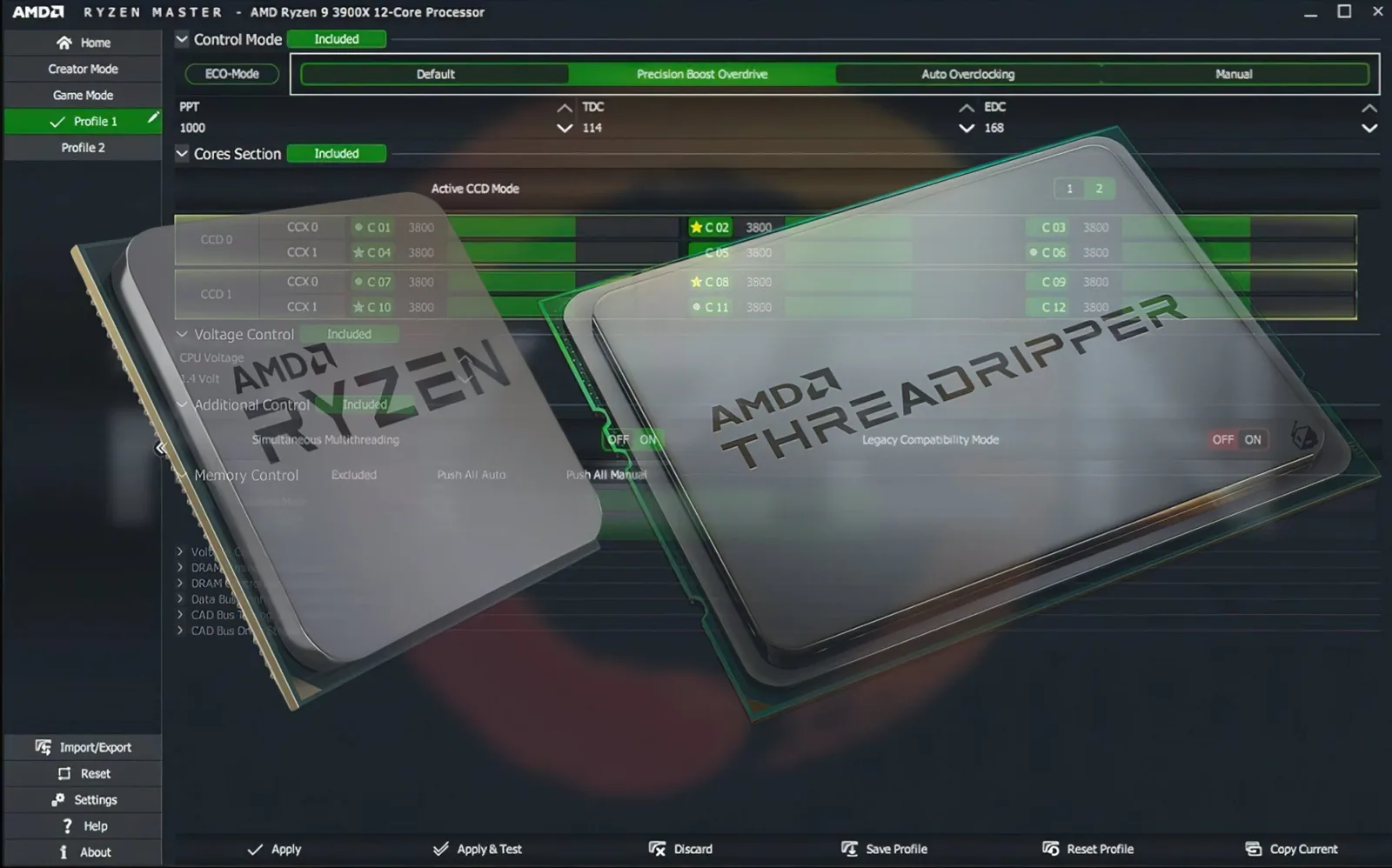
The Advanced view gives access to more detailed hardware settings. Depending on your hardware, this can include:
- Per-core information and controls
- Precision Boost Overdrive settings
- Curve Optimizer
- Voltage and frequency controls
- Memory-related options
- Profile management
Best for: experienced users who understand what each setting does and are prepared to test stability.
Which one should you start with?
Start in Basic view — or use Advanced view only for reading values. Moving to Advanced controls makes sense once you:
- Know your baseline idle and load temperatures
- Understand what PBO and Curve Optimizer do
- Have a plan for stress testing
- Know how to return to default settings
Switching between views
The interface usually lets you switch views from within the application. Switching views by itself does not change your processor settings — only applying changes does.
A common beginner mistake
Many new users open the Advanced view and change several values at once. If the system becomes unstable, they can’t tell which change caused it. Always:
- Change one setting at a time
- Apply it
- Test it
- Record the result
Summary
Basic view is for simplicity; Advanced view is for detailed control. There’s no prize for using Advanced — the right view is the one you understand. Next, learn to read Ryzen Master’s monitoring values.
Frequently asked questions
Does switching views change my CPU settings?
No. Switching between views only changes what you see. Your processor settings change only when you apply changes.
Which view should beginners use?
Start with the simpler view, or use the advanced view only to read values until you understand each setting.
Why should I change only one setting at a time?
If the system becomes unstable you will know exactly which change caused it, which makes troubleshooting much easier.