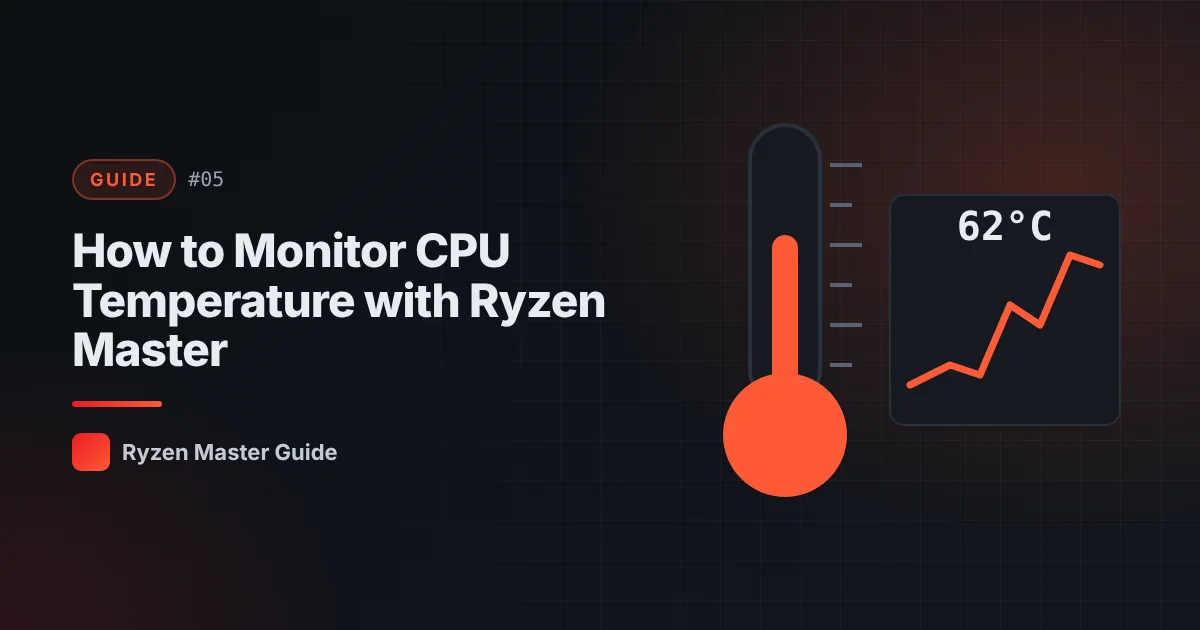
Temperature monitoring is the most useful — and safest — Ryzen Master feature. You don’t need to change any setting to benefit from it.
Where to find the temperature
Open Ryzen Master and look at the monitoring area. You’ll see the current CPU temperature, often alongside a peak value recorded since the session started. The exact layout depends on your version and view.
Measure your baseline
Take two readings:
- Idle: Leave the PC on the desktop with no heavy apps for a few minutes.
- Load: Run a game, render, or heavy app for 10–15 minutes.
Write down both numbers along with the room temperature. This is your baseline for everything you do later.
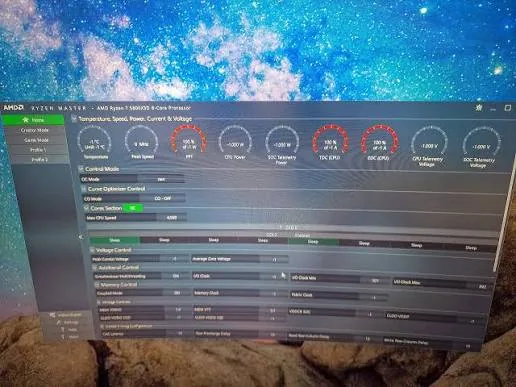
What counts as “normal”?
There is no single correct number. Temperature depends on:
- Processor model
- Workload type
- Cooler type and installation quality
- Case airflow
- Room temperature
Modern Ryzen processors are designed to boost aggressively and may run warm under load while working exactly as intended. Check AMD’s specifications for your exact processor for its maximum operating temperature, and compare your readings to reviews of the same CPU with similar cooling.
Signs something may be wrong
Look into your cooling if you see:
- Very high temperatures at idle
- Temperatures that rise much faster than before
- Sudden shutdowns under load
- Loud fans running constantly at full speed
Quick cooling checks
- Make sure the cooler is mounted firmly and evenly
- Confirm all fans spin, including the CPU fan
- Clean dust from heatsinks and filters
- Check that case fans move air in a sensible direction
- For liquid coolers, confirm the pump is running
Our cooling guide goes deeper.
Temperature after tuning
Features like PBO and overclocking can raise temperatures. After any change:
- Run the same load test you used for your baseline.
- Compare the new temperature to your baseline.
- If it’s excessive, restore defaults and review your cooling.
Tips for accurate readings
- Close other monitoring tools to avoid conflicting readings
- Test with the same workload each time
- Note the room temperature
- Let the system warm up before judging load temperatures
Summary
Use Ryzen Master to record idle and load temperatures, keep a baseline, and recheck after every change. It’s the simplest habit that protects your hardware.
Frequently asked questions
Is it safe to use Ryzen Master only for temperature monitoring?
Yes. Viewing temperatures does not change how your processor operates.
What is a normal Ryzen CPU temperature?
It depends on the processor model, workload, cooler, airflow and room temperature. Compare your readings with AMD’s specifications for your exact CPU and with your own baseline.
Why should I record a temperature baseline?
A baseline at stock settings lets you see exactly how much any later tuning change increases heat.